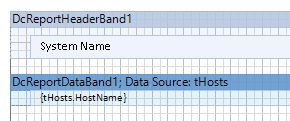
Formatting Reports in the Designer
When you open the Report Designer, Docusnap loads the current styles that have been selected in the Layout (CI) dialog. If you select a company, for which a different design was defined, from the status bar, that design will be loaded.
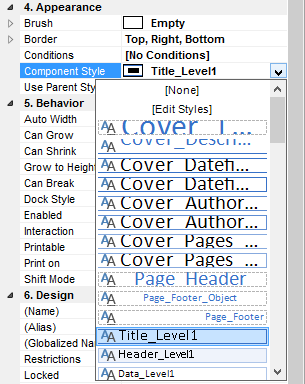
To assign a style to a component, select the component first. Then, select the associated style from the dropdown via the Component Style property on the Properties tab.
Styles
By default, styles have been defined for four different levels.
- Title: The Title_Level1 style is available for the title text and the Shape_Title_Level1 style for the shape title.
- Description: For the description output, the Description_Level1 style (left side) and a value using the Value_Level1 style (right side) are used. To align a value to the right margin, select the Value_Right_Level1 style.
- Headings: To format headings, you can used the Header_Level1 style.
- Data: Data can be formatted using the Data_Level1 and Data_Right_Level1 styles.
- Lines: Different styles are available for lines: Lines_Horizontal_Dark_Level1 and Lines_Horizontal_Bright_Level1. By using the Lines_Horizontal_Dotted_Level1 style, you draw a dotted line.
The other available styles can be used to format Permission Analysis reports and cover pages as well as headers and footers.